Click the Test mode switch in the dashboard top bar. An orange Test mode band then shows on every dashboard page. In Test mode, IRISfile shows only test files, and the files you upload are test files. They go to the IRS test system, never to the IRS. Click the switch again to go back to Live mode. Switching never moves a file: each file stays in the mode it was uploaded in.
Key facts
- Where
- Test mode switch in the dashboard top bar
- Sign
- Orange Test mode band on every dashboard page
- Files
- Each mode shows only its own files
- Switching
- Never moves or changes a file
- Test filing
- IRS test system only, never the IRS
- Test files on irisfile.co
- Free; payer and payee TINs start with 000
- Sandbox API keys
- Their files show in Test mode
Before you start
- Account
- An IRISfile account you can sign in to.
- Test data
- A file whose payer and payee TINs start with 000, such as 000-11-1112. Never use a real person's TIN for a test.
Step by step
Turn on Test mode
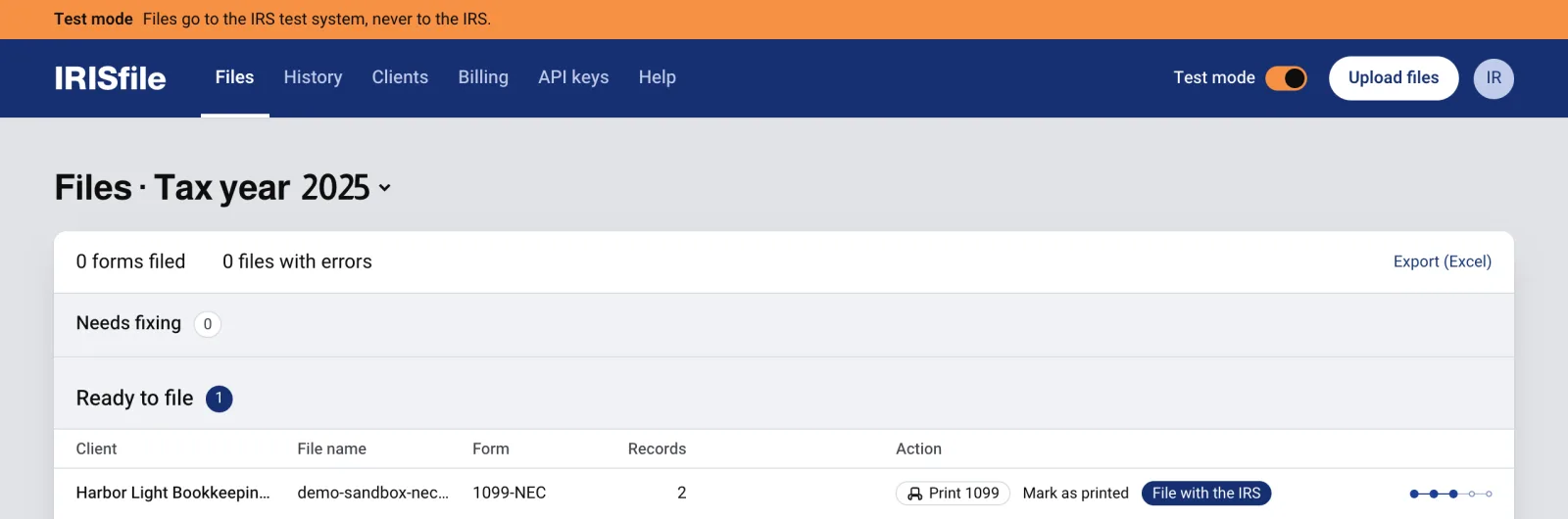
Click the Test mode switch in the top bar, next to Upload files. The page reloads in Test mode, and an orange band reads Test mode above the top bar.
This screenshot is from dev.irisfile.co, which has no Live mode, so its switch stays on Test. Where Live mode is available, it is the default, and the band shows only while Test mode is on.

The orange Test mode band above the top bar, and the Test mode switch outlined, locked on. Open full size Upload and file a test file
Upload a file as you would in Live mode. IRISfile converts and checks it the same way, and the file becomes a test file. Files, Clients and History show only test files while Test mode is on.
File with the IRS sends a test file to the IRS test system under the test code T. The IRS checks it and returns a receipt, but nothing is filed.
This screenshot is from dev.irisfile.co, where test files are billed in Stripe test mode and every download shows. On irisfile.co, a test file costs nothing, and its payer and payee TINs must start with 000. The Portal CSV and Print 1099 reach real systems and real people, so they work only in Live mode.
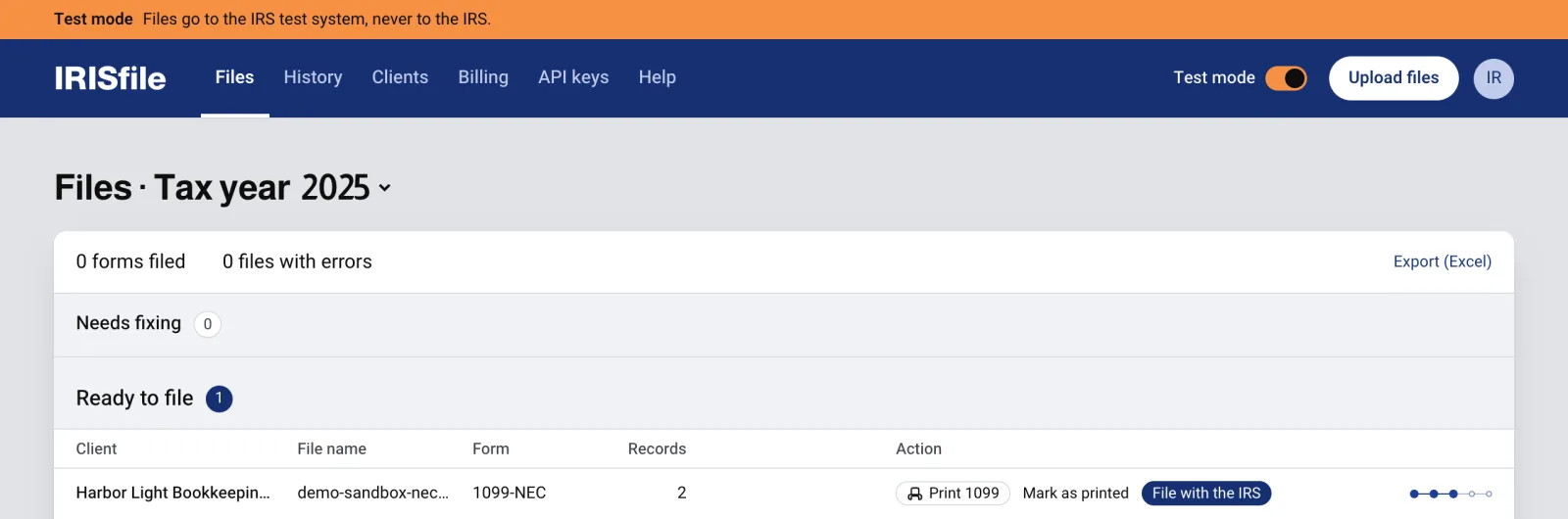
A test file with 000 TINs under Ready to file, with the Test mode band above the page. Open full size Go back to Live mode
Click the switch again. The band goes away, and the dashboard shows your live files.
Licenses, filing charges and API credits are real money, so you buy them in Live mode. On irisfile.co, the Billing page says so in Test mode.

If something goes wrong
- Live mode is not available on this deployment.
- The switch stays on Test where IRISfile has no connection to the live IRS system, such as dev.irisfile.co. Every file there is a test file. Use irisfile.co for live files.
- This file is in Live mode.
- A link opened a file that belongs to the other mode. Click Switch to Live mode or Switch to Test mode on that page. The file stays where it is.
- A file I uploaded is not in the list.
- It is in the other mode. Look for the orange band: if it shows, you are in Test mode. Click the switch to change modes, and the file is there.
- Not switched. Try again.
- IRISfile could not save your choice, and the dashboard stays in the mode it was in. Click the switch again. If it keeps failing, sign out and sign in again.
Questions
- Does Test mode change my live files?
- No. Each file stays in the mode it was uploaded in. Test mode only changes which files the dashboard shows and where new uploads go.
- Can a test file reach the IRS?
- No. A test file goes only to the IRS test system, and its XML carries the test code T. The IRS checks it the same way, but nothing is filed.
- Does Test mode cost anything?
- Not on irisfile.co. Test files are never billed there, so their payer and payee TINs must start with 000.
- Where do files from a sandbox API key show?
- In Test mode. A sandbox key starts with irf_test_, and every file it uploads is a test file.